



Game info
Character customisation, Dress up
Explore Gacha Club character creation, Studio scenes, poses, character slots, battle modes and official Lunime platform information.
Gacha Club: build a cast, not just an outfit
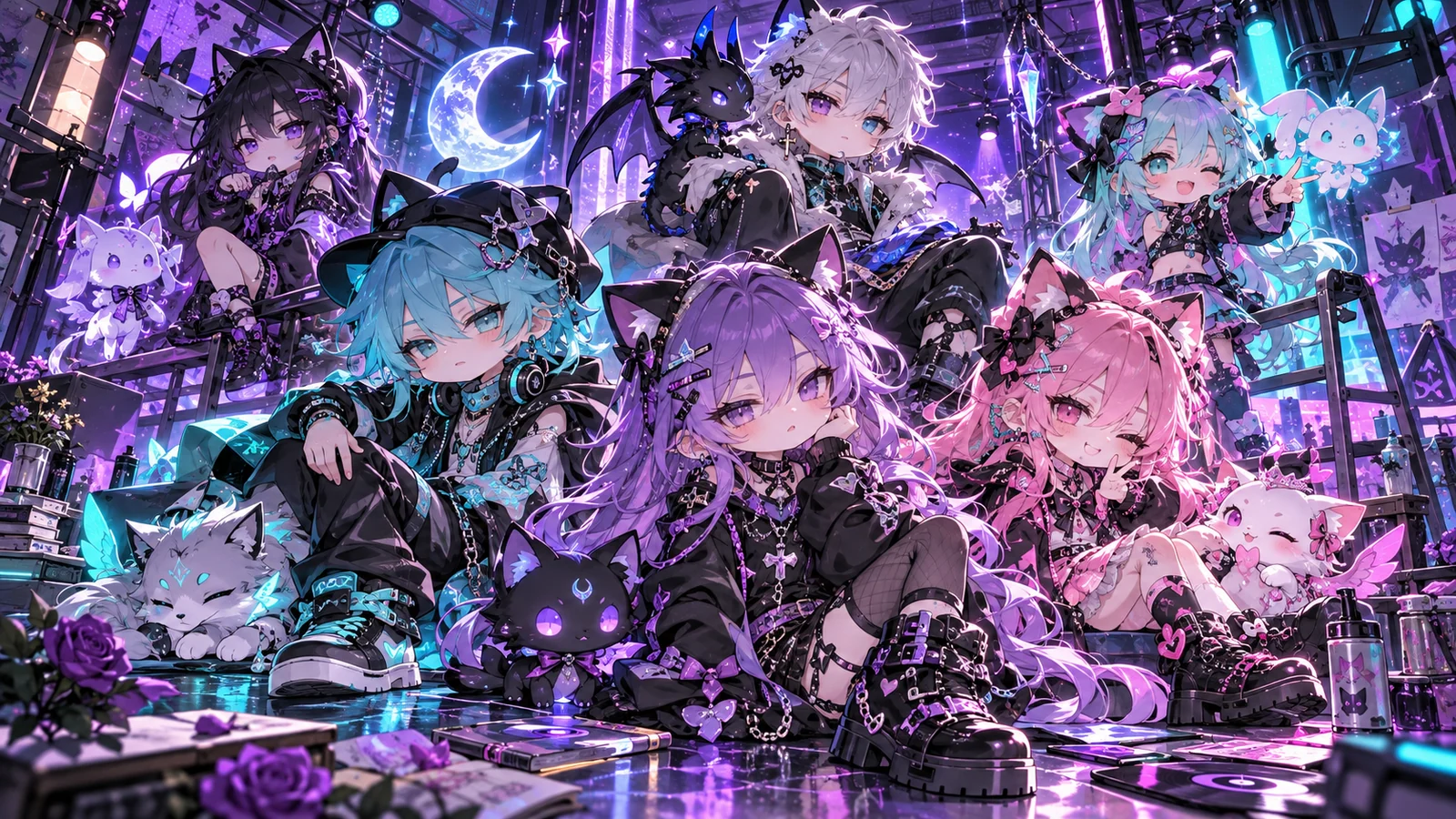
Gacha Club is Lunime's anime character-creation game with Studio storytelling and a collection-and-battle side. Dress a character, choose an expression and decide whether the next project is a portrait, a conversation or a larger scene. The game also provides unit progression and battle modes for players who want a different challenge between creative sessions.
Lunime's Gacha Club page identifies the original title and creator. Begin with the result you want, then choose the relevant tools: character slots for organising a cast, Studio for positioning actors and dialogue, or a battle mode for progressing with units. These are different kinds of play, and each becomes easier to understand when you give the current session a clear purpose.
Gameplay Overview
Start with the output you want: an avatar, a cast reference or a finished story panel. An avatar needs a readable face and outfit. A cast needs people who can be distinguished at a glance. A panel needs a setting, an action and a clear relationship between its characters. Choosing the output first tells you which details deserve attention and which can wait.

For a simple club scene, make two members with different roles: one is arranging an event and the other has arrived with unexpected news. Give them distinct expressions and one recognisable clothing difference. You now have a reason to choose appearance parts and, later, a reason to position the characters in a Studio scene. A decorative item becomes useful when it communicates that action.
How to Play Gacha Club
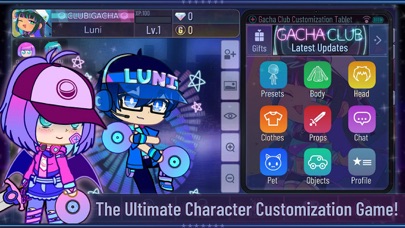
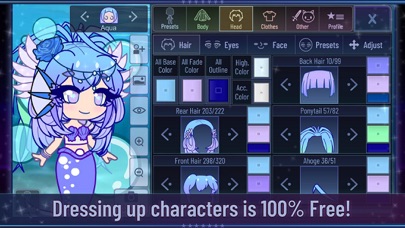
Begin by choosing a character and working through the large appearance choices: hairstyle, main outfit and facial parts. Then add accessories that support the design. Keep one part steady while comparing another so you can identify which change improved the character instead of replacing everything at once.
For a first Gacha Club project, create an organiser and a newcomer for a club meeting. Give them different silhouettes and expressions, then use Studio to show their first exchange. Choose a background, place the actors and set their poses before writing dialogue. You can finish with one readable panel or save another scene showing the reaction. That small project connects the character editor with the storytelling tools without requiring a large cast.
Controls
Use Gacha Club's menus to select the character and the appearance part you intend to change. Move through the item and colour options, then inspect the whole figure before continuing. Keeping the active actor clear is important when you are editing several designs or preparing alternate outfits for a scene.
In Studio, select an actor before adjusting position, pose or expression. Check the complete composition after each substantial change. A face that reads clearly in the editor may be too small in a wide shot, and a prop can obstruct a hand or speech box. Work at the intended viewing size before treating a panel as finished, and use the supported scene-saving controls to preserve work you want to continue.
Key Features of Gacha Club
Gacha Club's creative tools give a cast plenty of room to develop. The official App Store description lists ten main characters and ninety extra slots, extensive colour changes, hundreds of poses and customisable pets and objects. Those features support both a single detailed avatar and a recurring cast for a larger story.
Use those options with a project in mind. A school-club scene needs actors who can be recognised quickly and a setting in which their interaction is visible. A portrait can put more attention on the face and outfit. Keep a clear version of each main character before preparing costumes or alternate expressions. This gives the larger slot collection a purpose rather than filling it with experiments you cannot identify later.
Pro Tips: Plan a Cast with Clear Contrasts
In the game's character collection, use the main slots for the cast you are actively working with and the extra slots to organise supporting people or alternate designs. Give each important person a clear visual role before creating several costumes for them. This helps you recognise the correct actor when the project grows beyond a single pair of characters.
Plan a small scene around an action: a rehearsal, a club meeting or a disagreement about a missing prop. Choose which character starts the action and which reacts. Then build only the cast required for that scene. Having many available slots does not mean every panel needs a crowd; two readable performances can communicate more than several nearly identical figures with no clear task.
Colour Themes without Identical Characters
Use a shared accent to connect the group while varying the large clothing shapes. One member can use the accent as a jacket colour, another as an accessory and another as a smaller detail. The connection remains visible without making every outfit a copy. Compare the figures together before deciding that a colour scheme works for the whole cast.
Gacha Club's customisation includes outline-colour adjustment, which can help separate neighbouring parts of a design. Keep hair, sleeves and accessories readable against one another and against the background you intend to use. If the silhouette disappears, changing one outline or large colour area is often more effective than adding another small highlight. Test the result at the size the actor will have in the scene.
Expressions and Relationships
Choose an expression for the current beat of the story. An organiser can begin confident and become worried when a visitor delivers bad news. The visitor may look pleased, embarrassed or unaware of the problem. These choices create a relationship between the actors rather than assigning each one the same expression in every appearance.
In Studio, use face presets and pose choices to make the reaction visible. A turn towards the speaker, a more open posture or a changed facial expression can separate the response from the previous panel. Change only the parts needed for that beat so the viewer recognises the same characters. The goal is an understandable sequence, not the largest number of pose changes.
From Avatar References to a Scene
Use a short production order when moving from design to a Studio panel:
- Choose the background that explains where the event happens.
- Add the actors required for the action and place them before adding decorations.
- Set their poses and expressions so the interaction reads without text.
- Add the prop that matters to the story.
- Add dialogue or narration, then check that faces and text remain unobstructed.
For example, a club member handing over a forgotten item needs a giver, a receiver and that item. A third actor is useful only if their reaction contributes to the moment. Leave a clear space between the main faces and the text boxes. This workflow turns a collection of attractive avatars into a scene with an action the viewer can actually follow.
Studio Mode in the Original Gacha Club
Studio supports arranging up to ten characters alongside pets, objects, backgrounds and foregrounds, with custom text boxes and a Narrator option for storytelling. Lunime's official Gacha Club Studio page describes the Windows edition and its supported creative features. These tools are useful for separating what the characters say from information the audience needs about the setting or sequence.
For a short episode, keep dialogue brief enough to read before the next action. Use narration for a change of place or time rather than filling every panel with explanation. Place a pet or object where it contributes to the event: a pet waiting at the door can establish an arrival, while a prop between two people can explain what they are discussing. Decoration is most useful when it supports the scene's main action.
Gacha Club Collection and Battle Modes
Gacha Club includes four battle modes: Story, Training, Tower and Shadows of Corruption. Unit collection, pets and progression resources are separate from dressing a Studio character. The official Google Play listing describes those modes, enhancement and awakening materials, skill levels, gems and bytes. It also names mini-games such as Usagi vs Neko and Mascot Whack.
Begin progression by reading what one resource changes before spending several kinds at once. Compare the same encounter before and after an upgrade so you can see whether it addressed the difficulty you noticed. A strong-looking costume is not evidence of a battle unit's role, and a character-design reference is not a team recommendation. Keep creative and combat decisions distinct so each part of the game has a clear goal.
Windows Studio Demo and Transfers
Lunime identifies the Windows download as a Studio-focused demo containing customisation and scene-making rather than the full battle and collection experience. Its creator page also states that accounts do not transfer between Windows and Android and that online import and export are unavailable in that demo. Use the supported platform information when planning a Windows project.
Preserve a visual reference and any supported local scene files before changing editions or installations. A screenshot records the appearance of a panel, while an editable character or scene file serves another purpose. Do not treat those formats as interchangeable. The same design idea can be recreated with different tools, but that does not mean an account, unit collection or saved scene automatically moves with it.
Advanced Tips: Maintain Continuity across a Project
Use a scene list when your story grows beyond one panel. Record the setting, active characters, important prop and the change that happens in each scene. Studio's save-and-load feature provides up to fifteen scene slots; organise the available slots so you know which are finished panels and which are experiments. Keep the opening panel intact while testing a different reaction in a later one.
Check continuity by following one actor or prop through the sequence. If a character entered carrying a bag, decide where it goes before the next panel. If clothing changes, make that change part of the story or keep a clear reference for the original look. These small checks prevent a reader from being distracted by an accidental disappearance while the main conversation is unfolding.
Saving and Sharing Your Work
Before sharing a panel, inspect the final image at its intended size. Make sure the text is readable, the speaker is identifiable and the important action is not hidden by a foreground object. Keep a separate reference for the underlying character design so you can create another scene without relying on a cropped image of only part of the outfit.
Share fictional names and story details rather than private personal information. Credit third-party music, artwork and borrowed character designs according to their terms. For current original releases and creator information, use Lunime's website. A fan story can demonstrate excellent pacing or composition without being an official product tutorial or a description of every available game feature.
Similar Games
Gacha Life offers another Lunime character-creation experience with Studio and Life mode, while Gacha Life 2 is a separate release. Compare the actual creative tool you need: appearance, pose control, scene arrangement or a longer role-playing session. Similar anime artwork alone does not establish matching character slots or transfer features.
You can also change direction within Gacha Club. Make a new Studio exchange using an existing cast, prepare an alternate costume or switch to a battle or mini-game goal. A finished character or saved scene gives the next session a useful starting point. Choose one task to complete rather than rebuilding every design whenever you want something different to do.
Browser games in this collection
- Anime Fantasy RPG Dress Up — Choose a fantasy heroine and develop a complete costume rather than a face alone. The opening screen offers six character portraits.
- Anime: School Avatar — Build a school-themed anime portrait using a compact illustrated editor. Its opening title leads to a face with separate appearance categories.
- Cute Girl Avatar Maker — Create a small chibi character by assembling individual facial and clothing pieces. The checked browser build opens with its own Cute Girl Avatar Maker title and a portrait-shaped editing area.
- Vlinder Anime Doll Creator — Make an anime doll in the Vlinder editor, with a tall character preview and an illustrated item tray. The checked title, artwork and build address differ from Cute Girl Avatar Maker.
- Anime Avatar - Face Maker — Design a close-up anime portrait rather than a whole town or a battle team. The pink editor presents a large face, separate feature tabs and rows of colour swatches.
- Chibi Doll - Avatar Creator — Build a chibi character in a wider editor with a character list, item categories and a large colour palette. The checked build opened a language picker, then a Create your chibi prompt.
History and Updates
Gacha Club is a Lunime title with mobile releases and a Windows Studio download. Its creative side combines a character editor with multi-actor scenes, dialogue and saved compositions. Its collection side adds units, progression resources and different battle goals. The official product, store and creator pages provide platform-specific information for those activities.
Keep useful storytelling ideas separate from the exact arrangement of an older interface. A scene may demonstrate a strong reaction shot even when its buttons look different from yours. Identify the result you want—an expression change, a prop handover or a readable conversation—then use the supported tools to achieve it. This preserves the value of an idea while keeping the project grounded in the game you are playing.
Create a Cast You Can Recognise
Start a Gacha Club session with a clear goal: finish an actor, build a Studio exchange, organise the cast or work on one battle challenge. Give each actor a recognisable role and make the important action visible. Keep the project's setting, props and dialogue connected with that action rather than adding every available detail.
Finish one character or panel and save what you want to continue. The next visit can then begin with the next event in the story or a deliberate change to an existing design. That continuity gives the game more purpose than repeatedly opening costume categories without deciding who the character is or what they will do.
Frequently asked questions
What can I do in Gacha Club?
Create characters, build Studio scenes and pursue collection or battle goals. Character editing, scene-making and combat progression are different activities, so choose a clear task for each session.
How do I start a Gacha Club character project?
Choose an actor, establish the hairstyle and main outfit, then refine the face and accessories. Give the design a role in a portrait or scene rather than selecting every interesting item without a project.
How many characters can I customise?
The official description lists ten main characters and ninety extra character slots. Use them to organise a cast and its supporting actors or alternate designs.
What can I do in Gacha Club Studio?
Studio supports characters, pets, props, backgrounds, foregrounds, poses, custom text boxes and narration. Build the main action before adding decorations so faces and dialogue remain clear.
What are Gacha Club's battle modes?
The official listing names Story, Training, Tower and Shadows of Corruption. Battle progression and unit collection are separate from dressing a Studio character.
What is the Windows Gacha Club release?
Lunime describes its Windows download as a Studio-focused demo with customisation and scene tools. Use the creator's platform-specific information when planning a Windows project.
Can I transfer a Windows demo account to Android?
Lunime's creator page says accounts do not transfer between those editions and that online import/export is unavailable in the Windows demo. Check the supported save information before changing installations.
How do I make a short Gacha Club story readable?
Choose two actors, an action and an important prop. Set the background, poses and expressions first, then add brief dialogue or narration and inspect the complete panel at its intended viewing size.

Good game? Tell us.0
Share a tip, celebrate a high score, or tell us what you think. Keep it friendly.